client connection
This document describes how to use a client other than a terminal to connect to EloqSQL.
The document operating environment is
- win11 operating system
Examples of client connections include but are not limited to the following:
- Navicat
- Oracle MySQL Workbench
- SQLyog
-
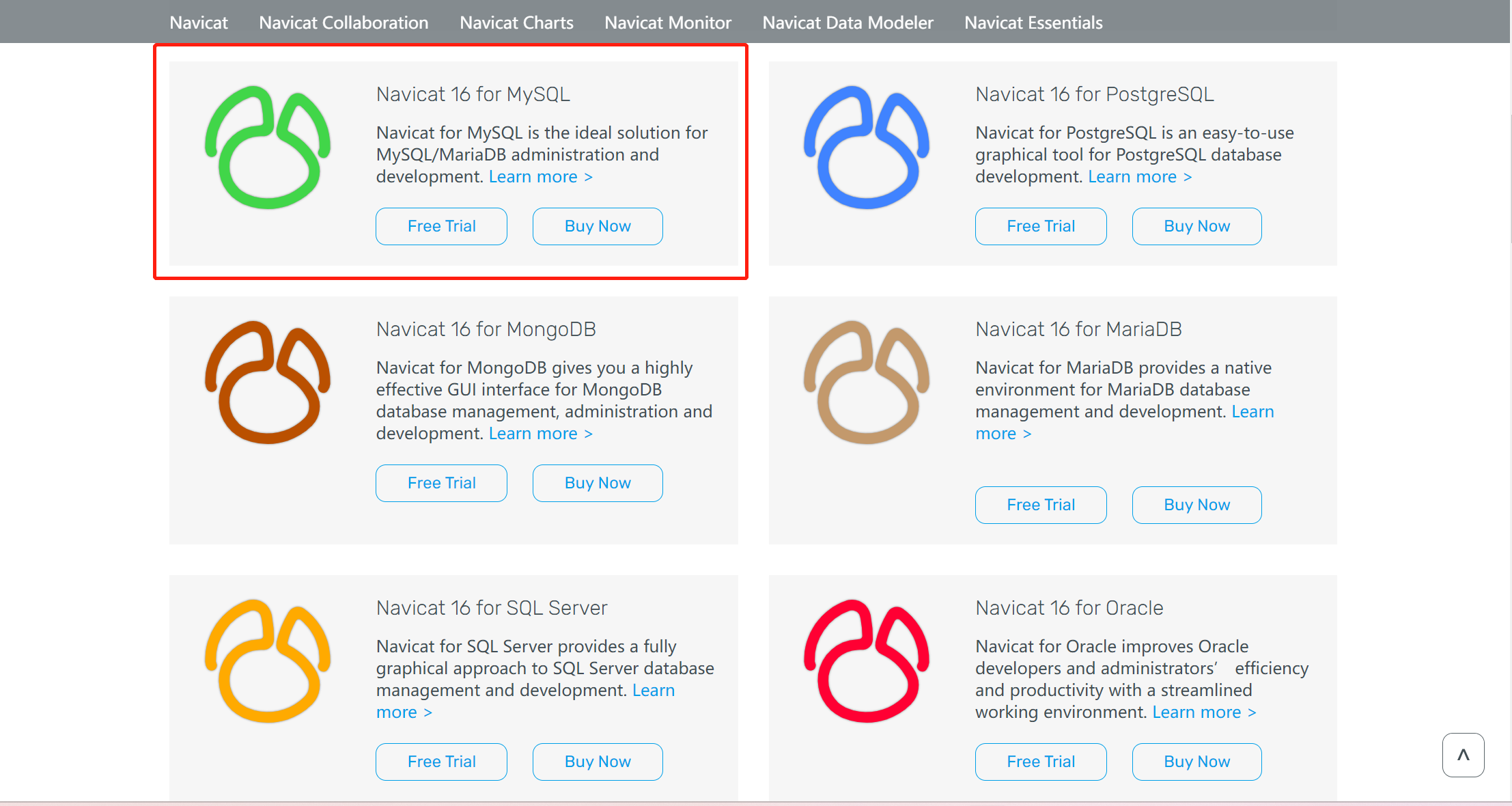
Navicat Download and install the Navicat for MySQL client installation package of the corresponding operating system.
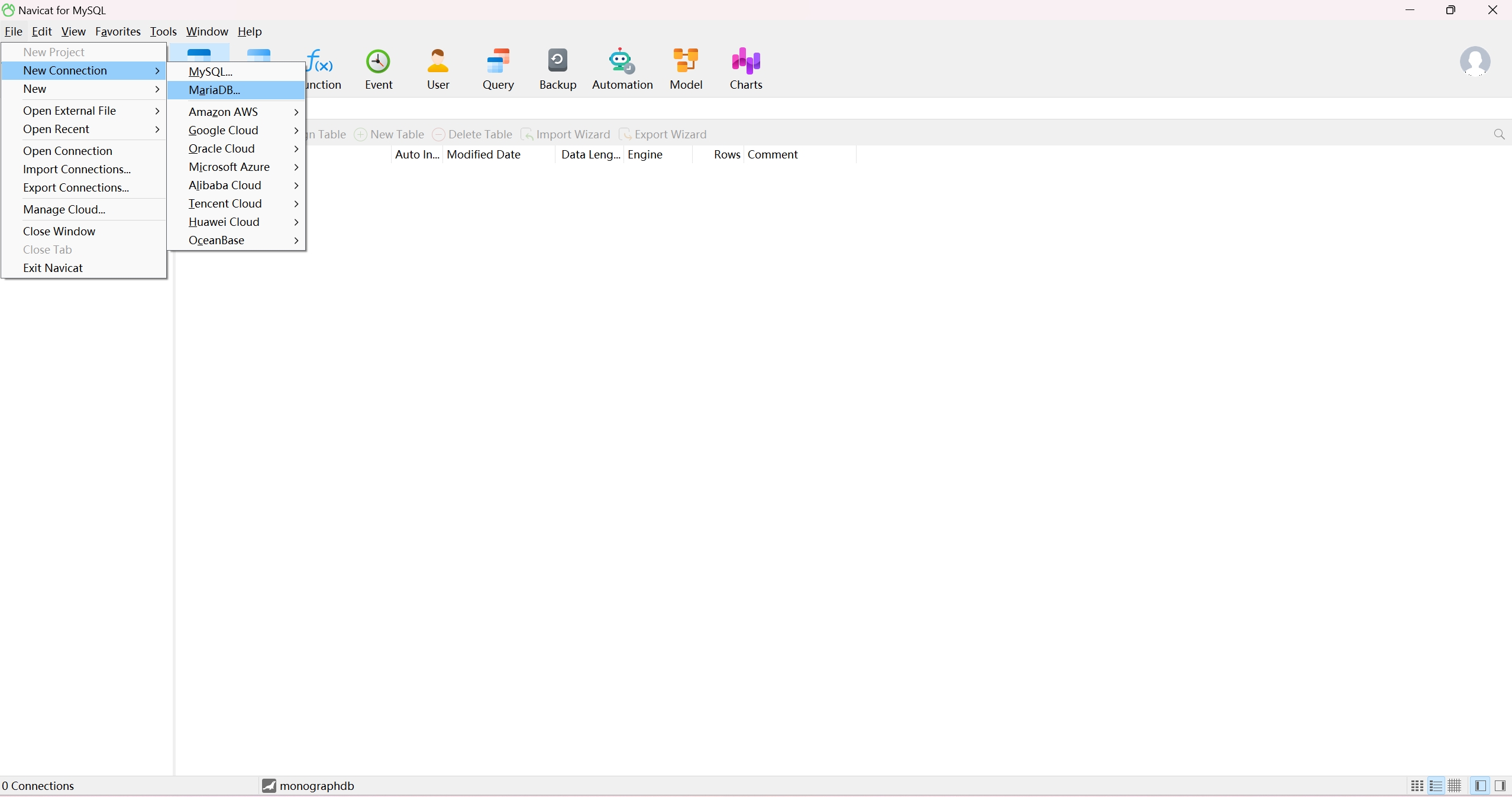
 Open the Navicat client and create a MariaDB connection
 Enter the IP of the server (Host) where the database is located, the port (Port) number (3300 by default), the database user name (User Name) is
 eloqand the user password set when creating the user to complete the connection settings .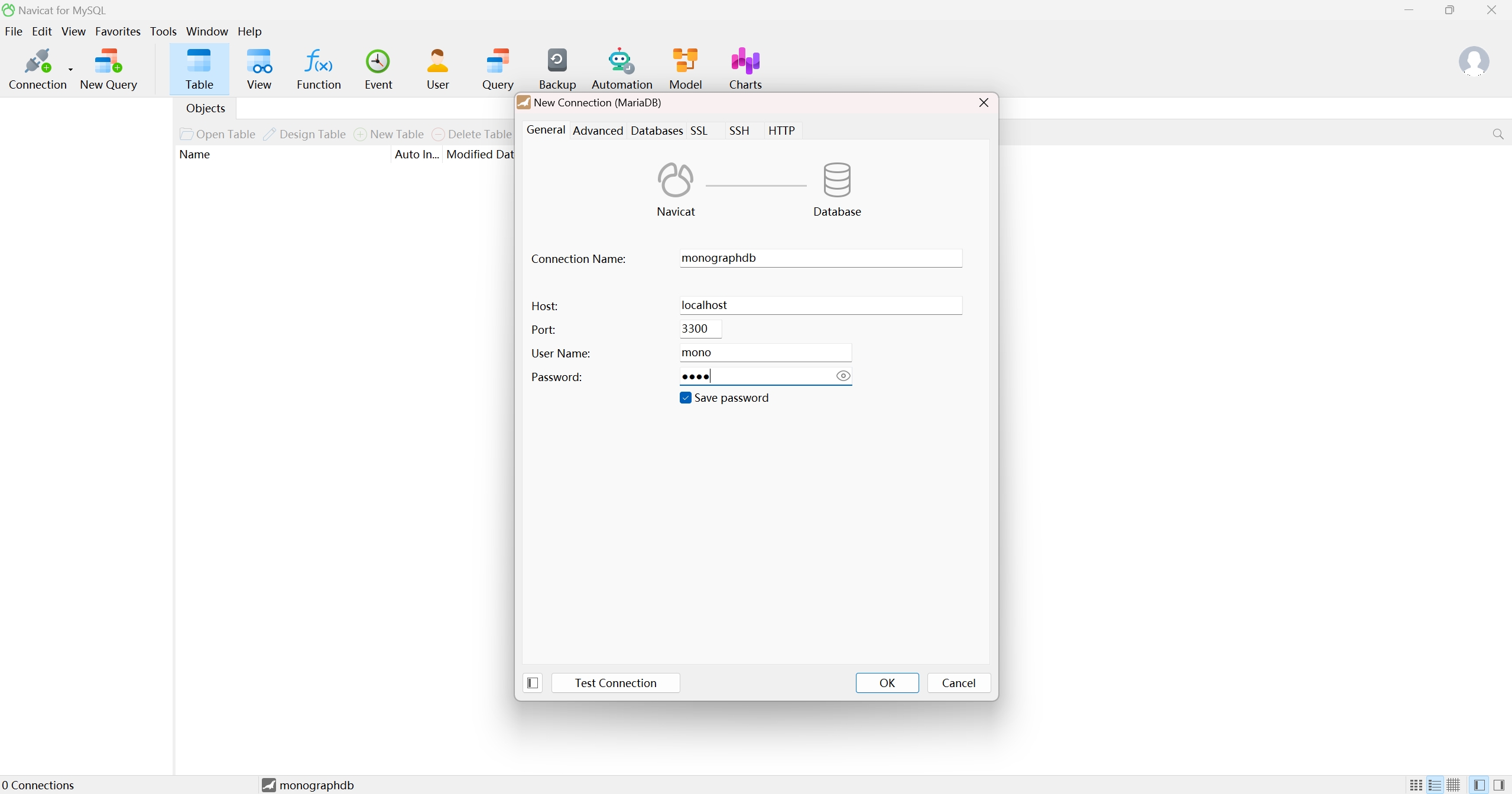 After the test connection is successful, save the connection and create a new query
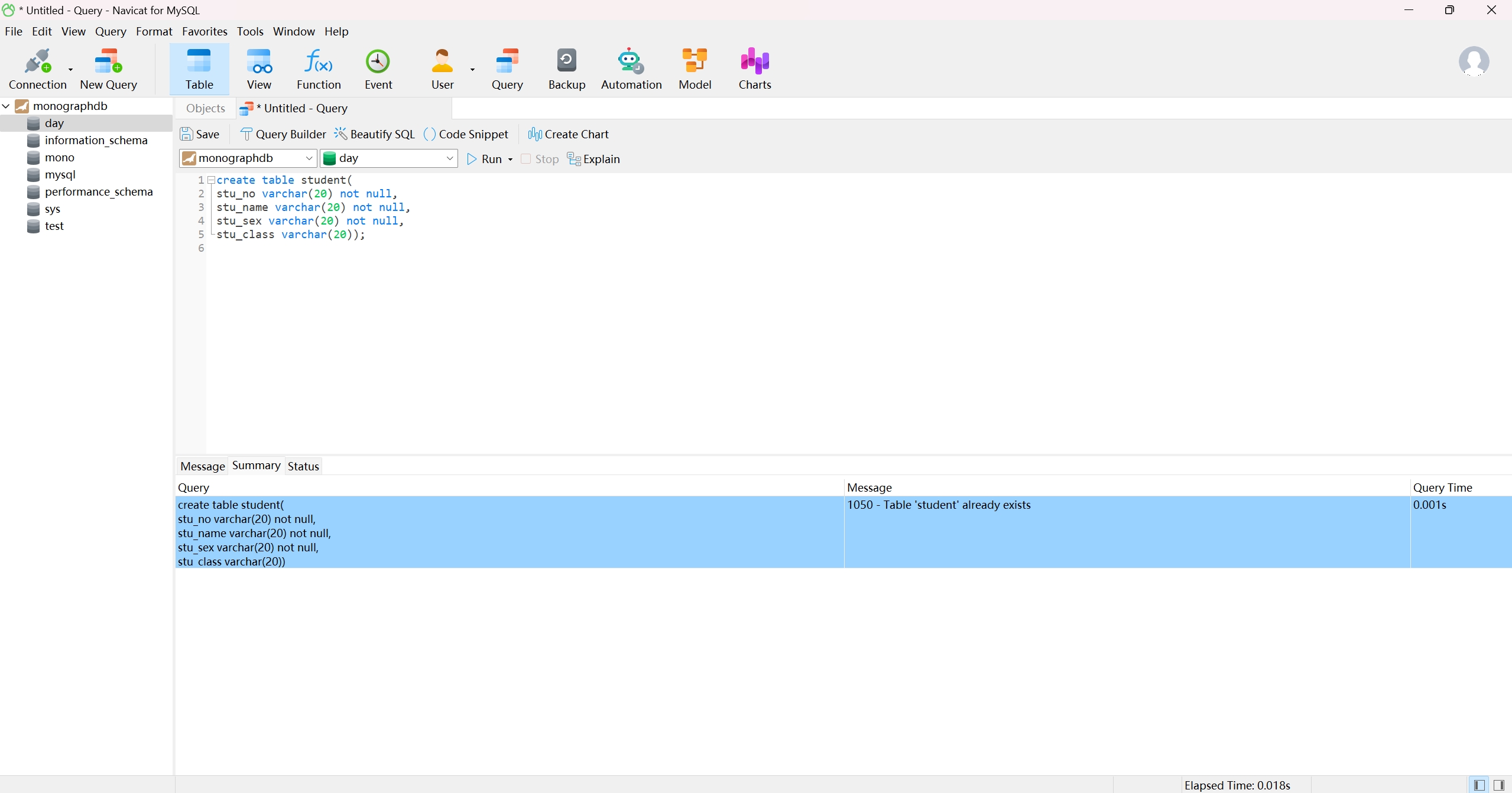
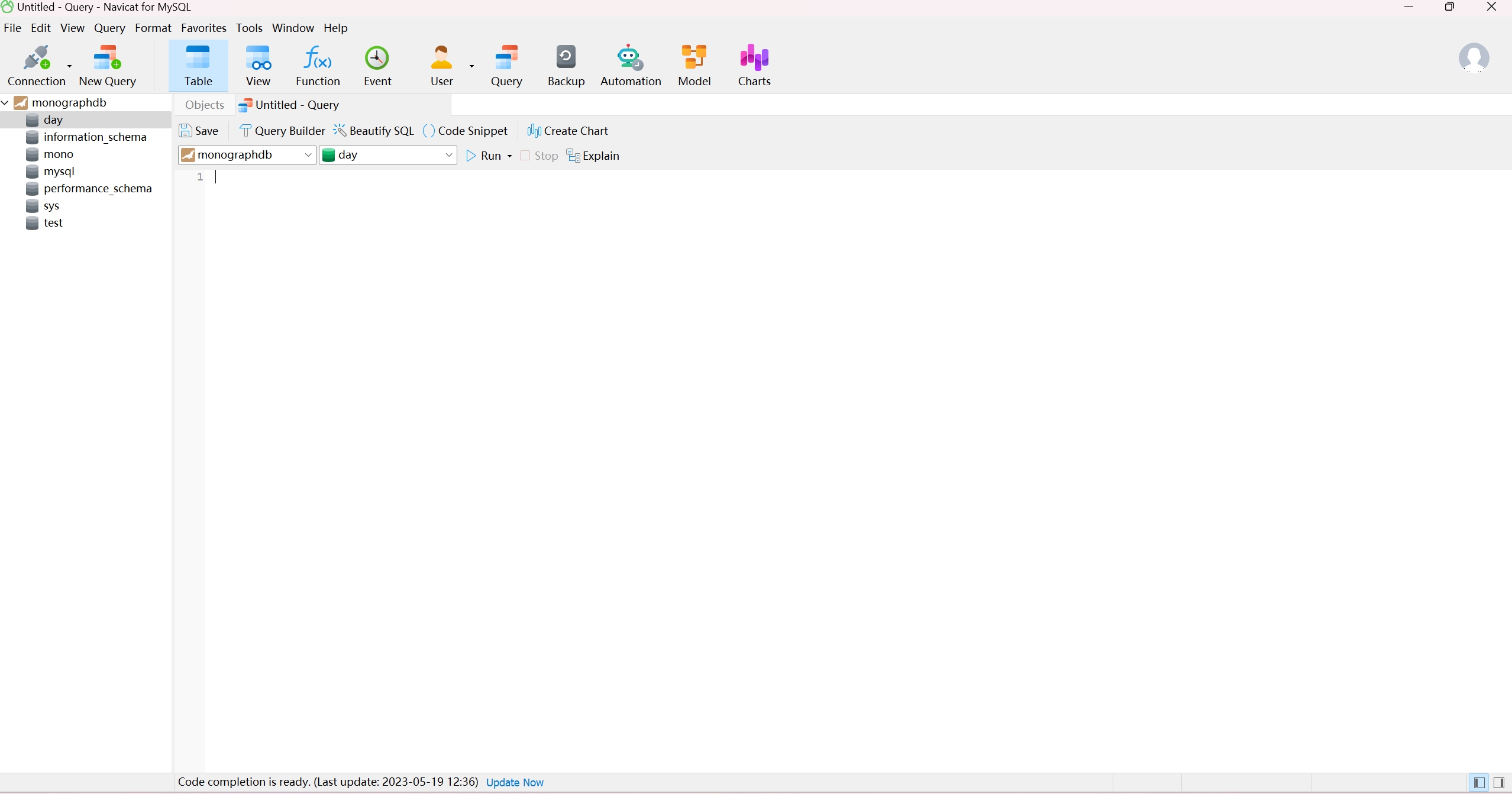 Write the SQL statement and click Run, it runs successfully.
-
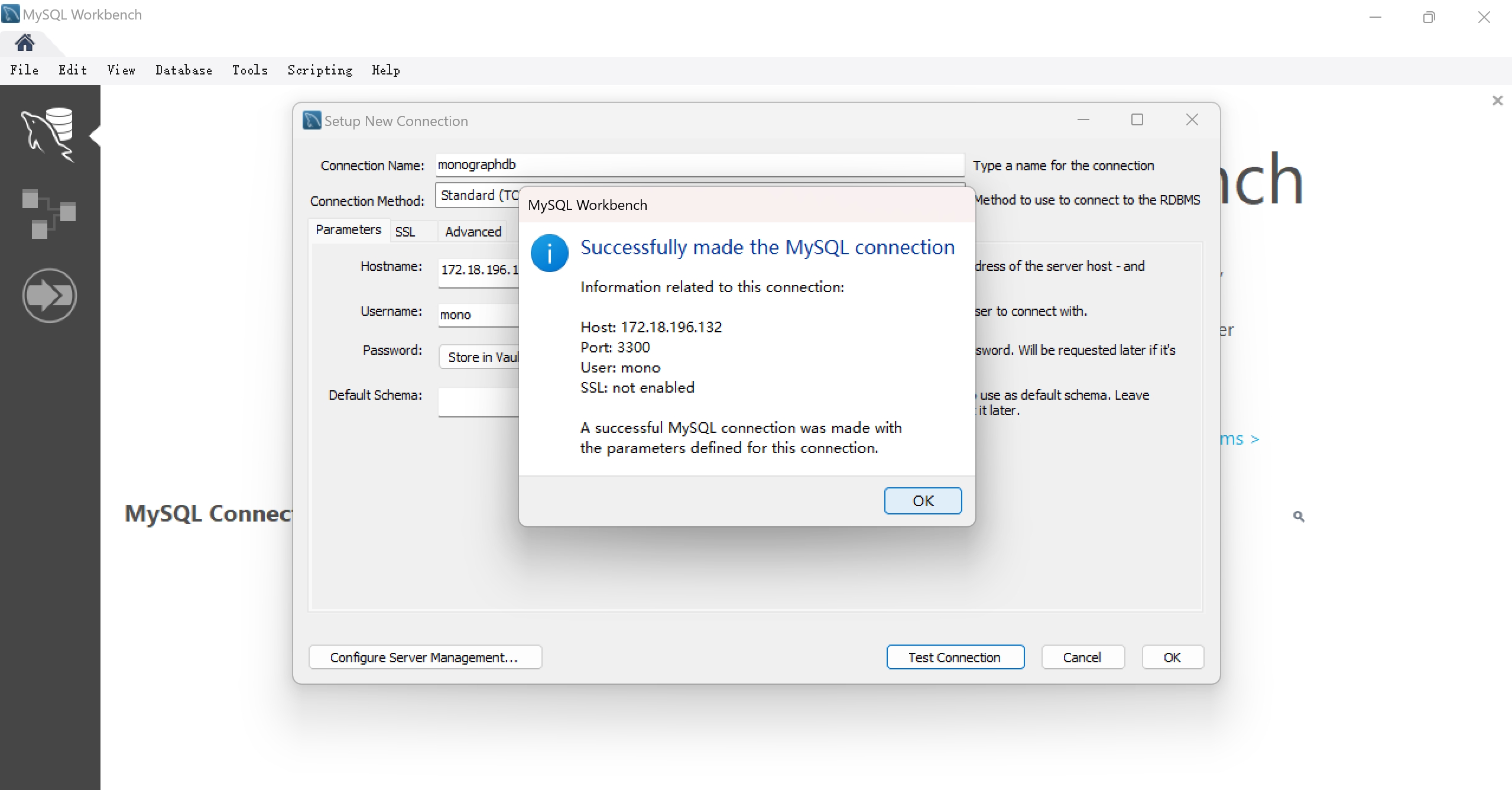
Oracle MySQL Workbench Download and install the Mysql Workbench client installation package from the official website. Open the Mysql Workbench client and create a new Mysql connection.
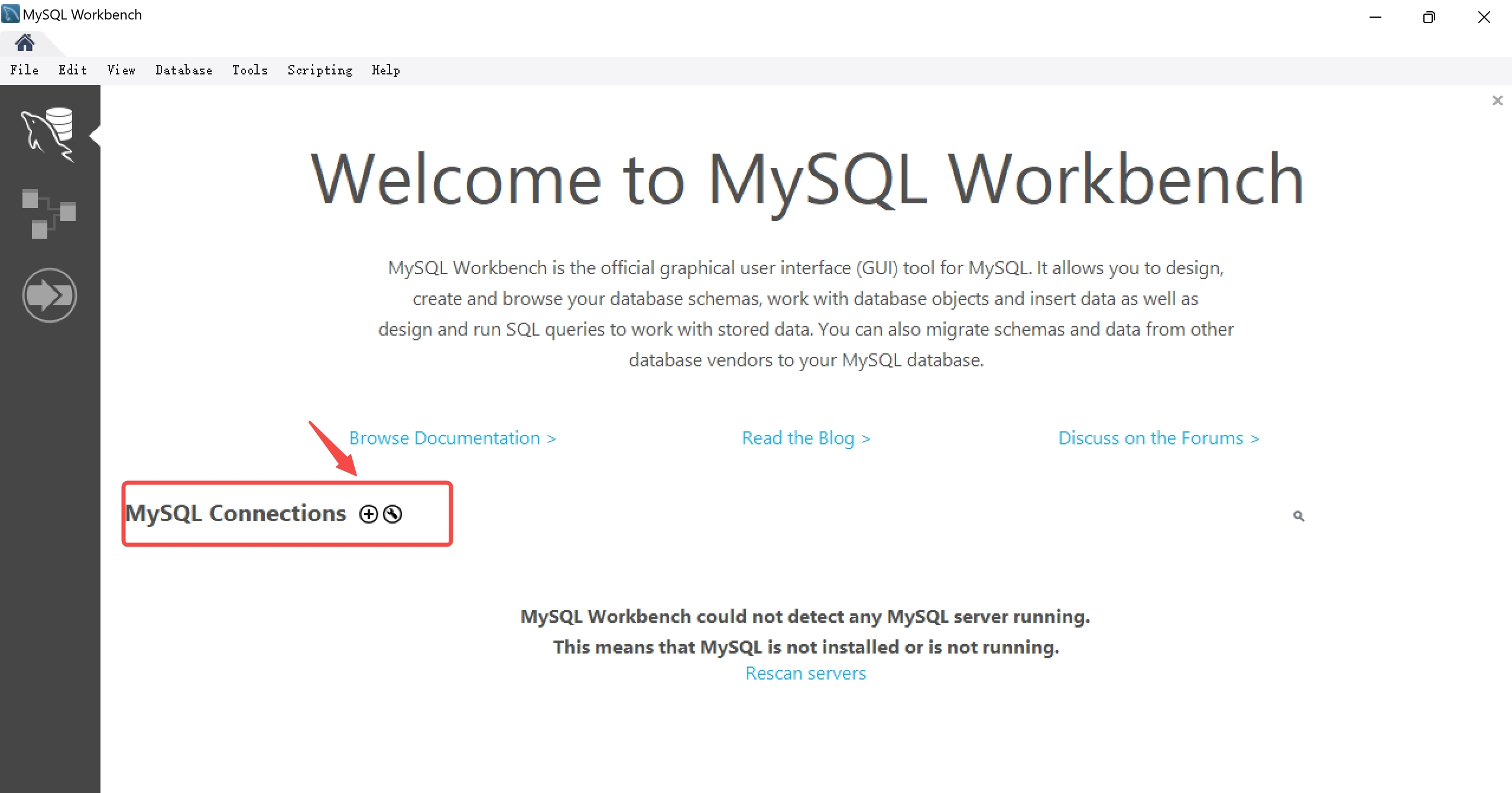 Enter the IP of the server (Host) where the database is located, the port (Port) number (3300 by default), the database user name (User Name) is
 eloqand the user password set when creating the user to complete the connection settings .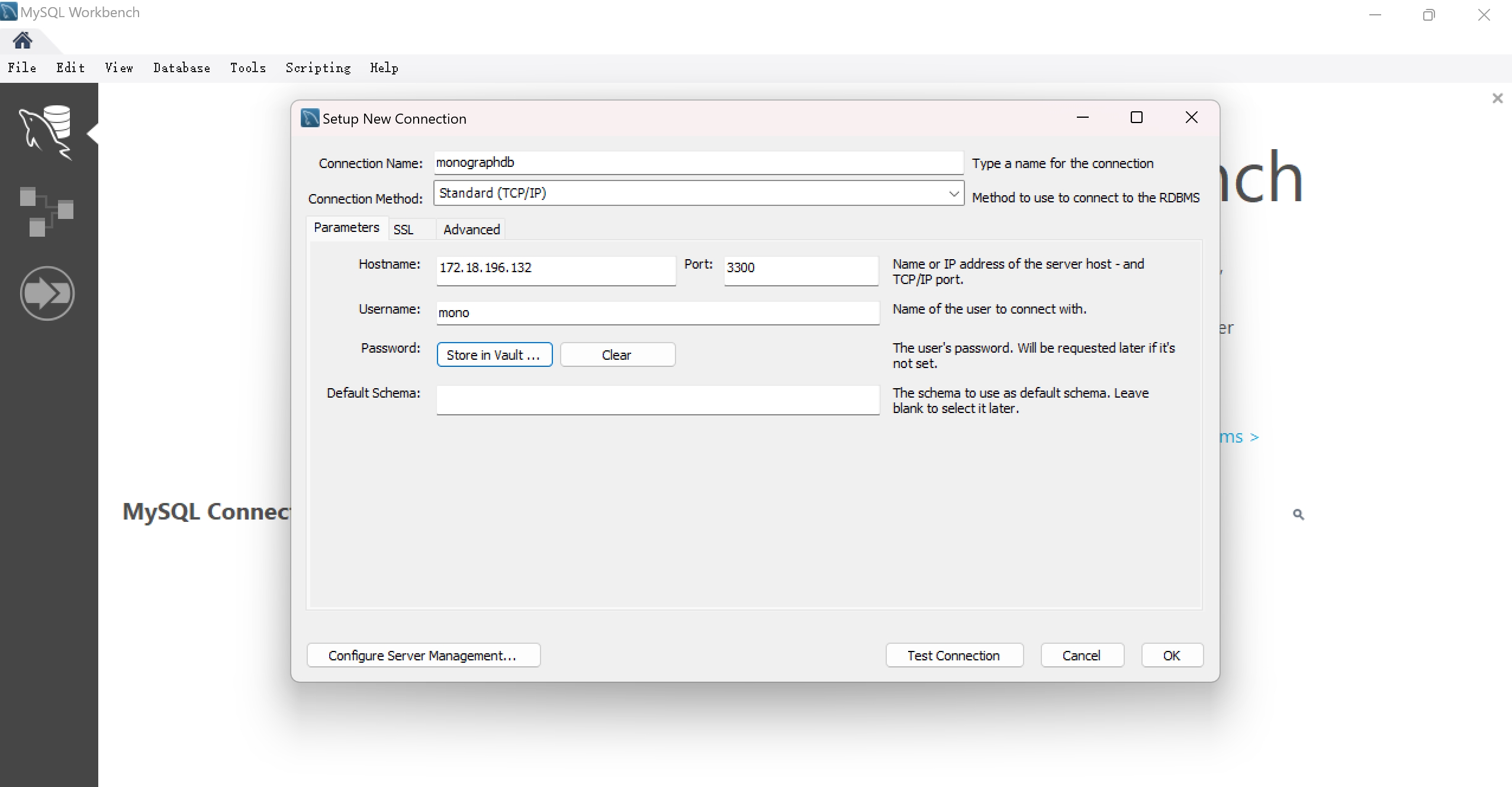 connection succeeded
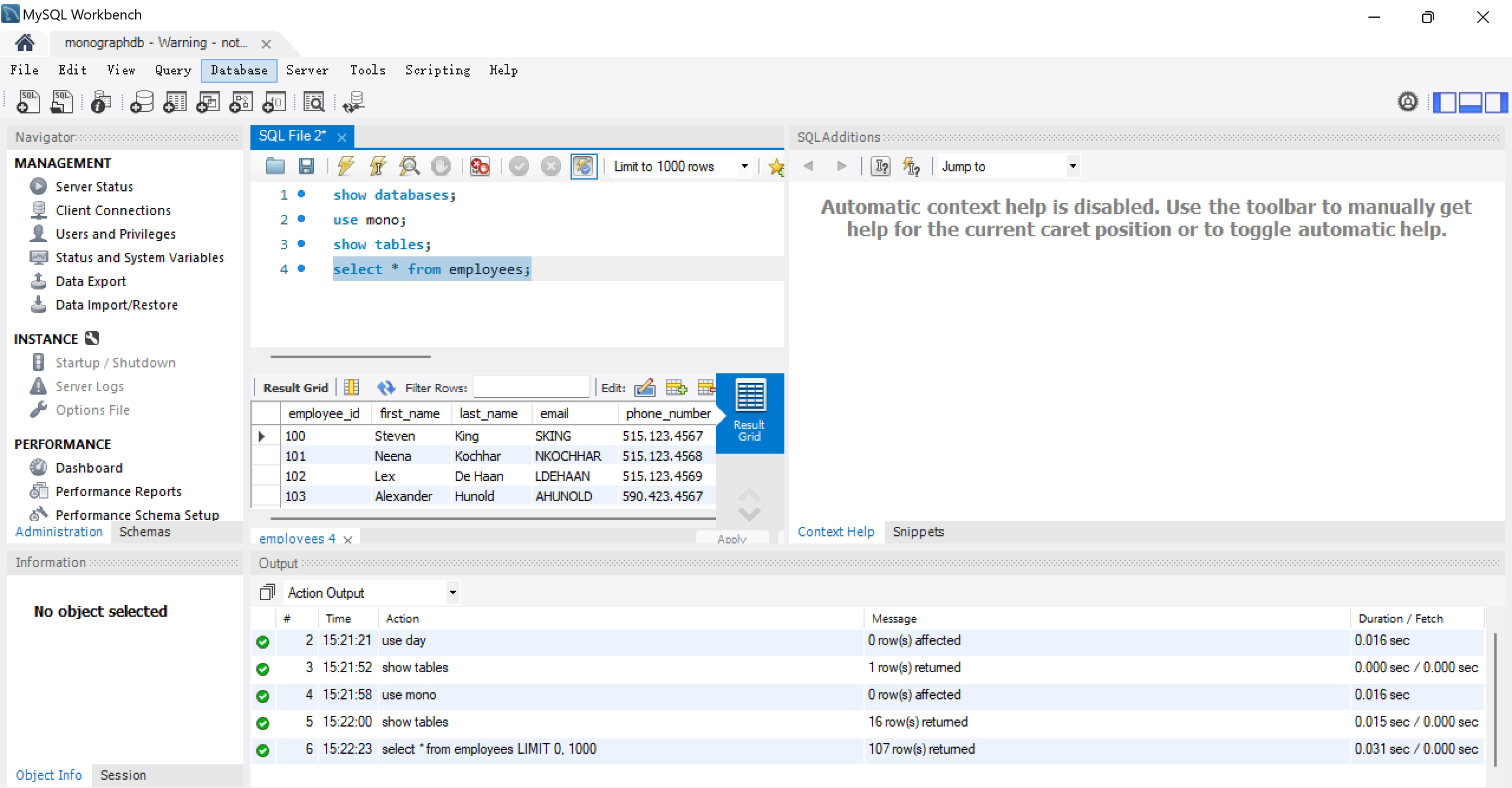
 Create a new query, write a SQL statement and click Run.
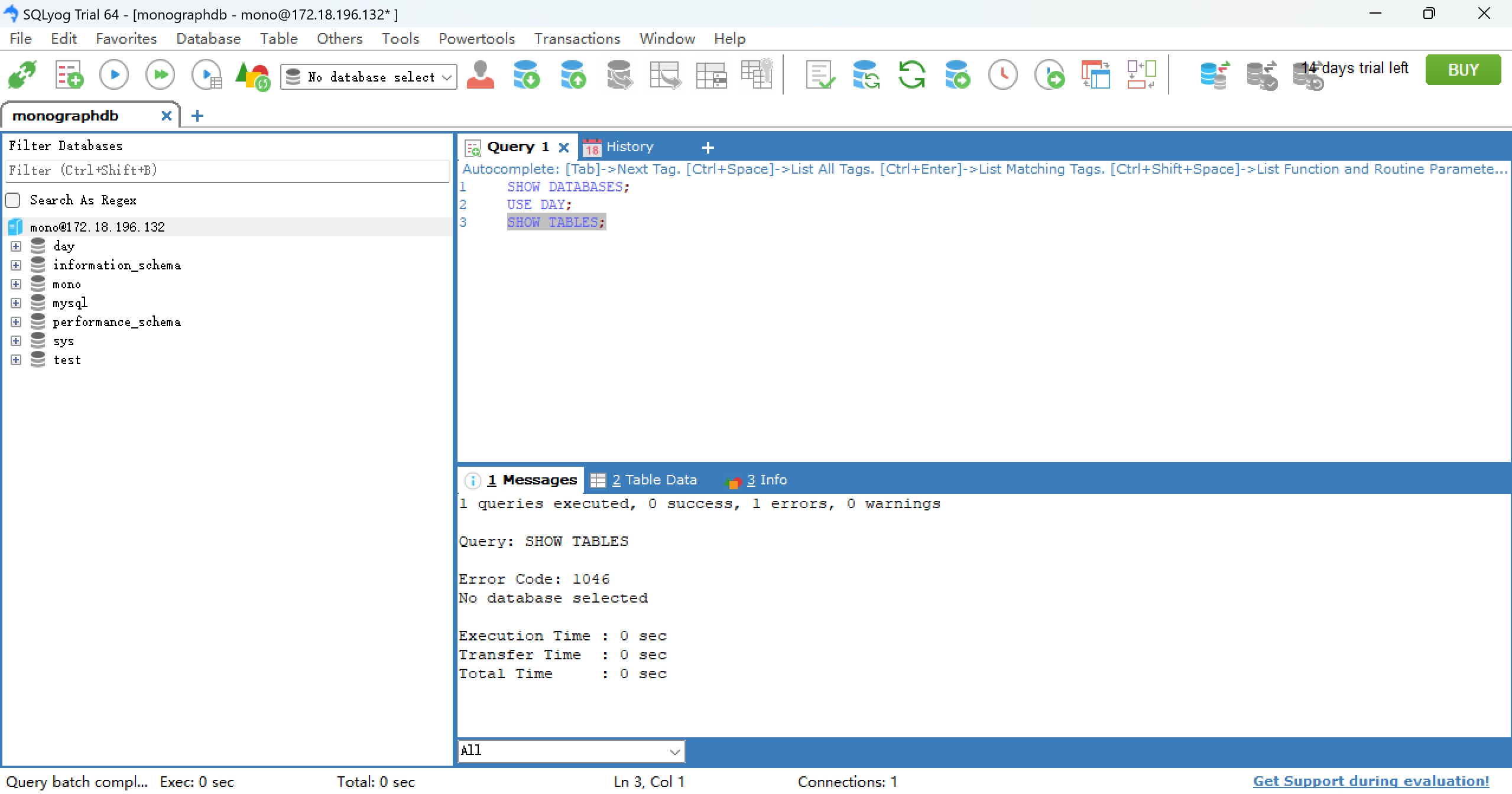
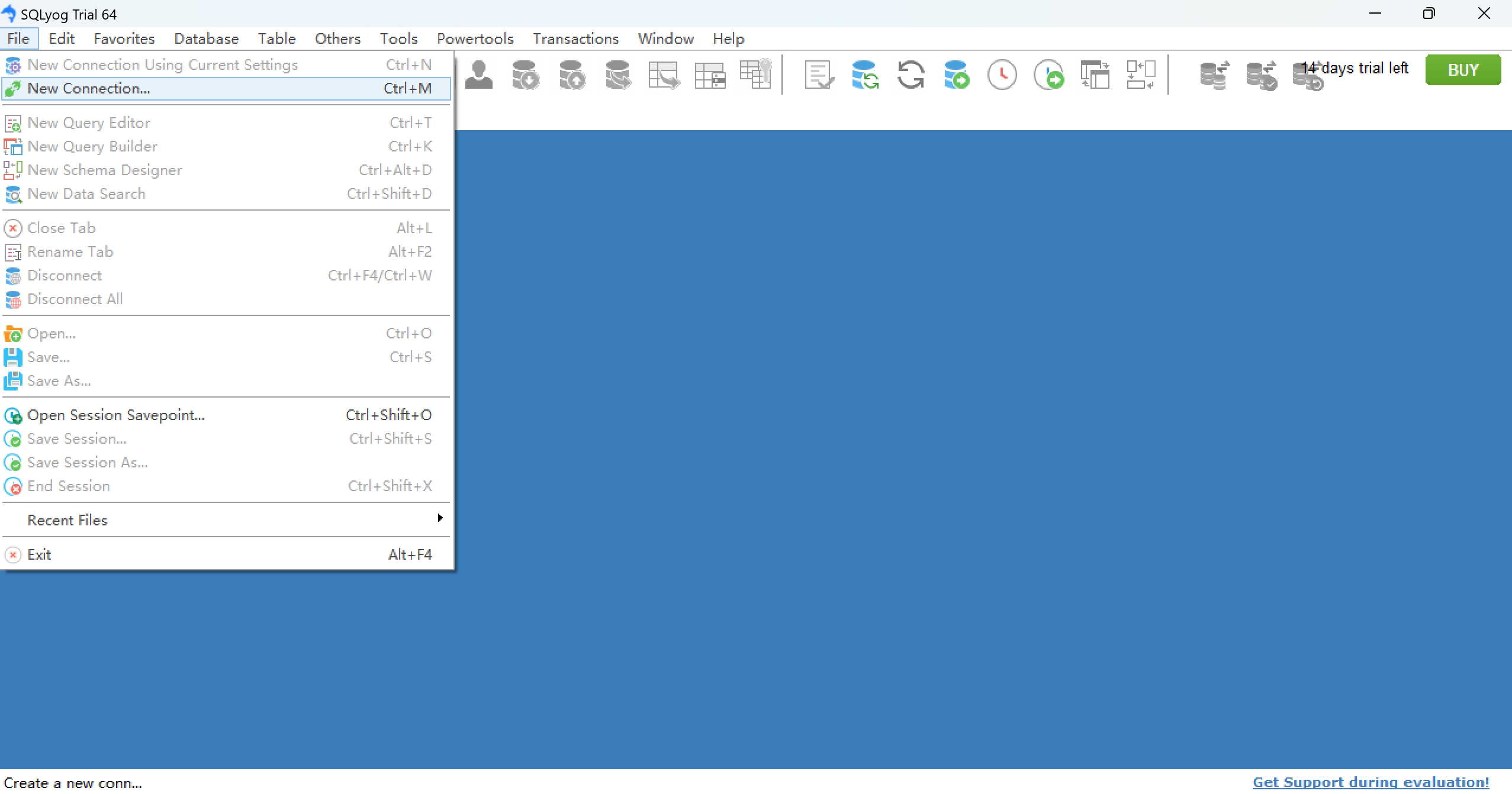
Download and install the SQLyog installation package for the corresponding operating system.
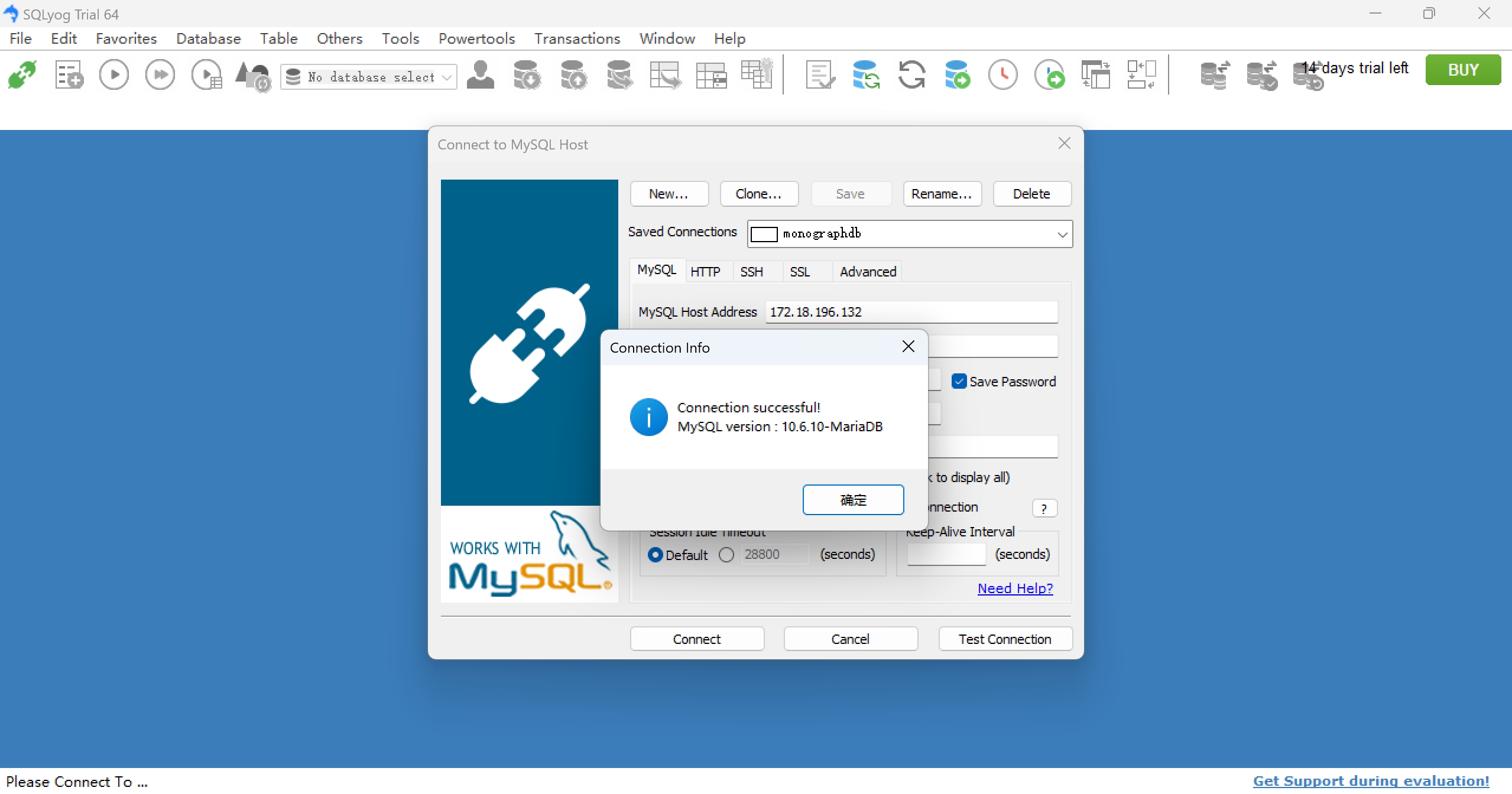
Open the SQLyog client and create a new connection
 Enter the IP of the server (Host) where the database is located, the port (Port) number (3300 by default), the database user name (User Name) is
 eloq and the user password set when creating the user to complete the connection settings .
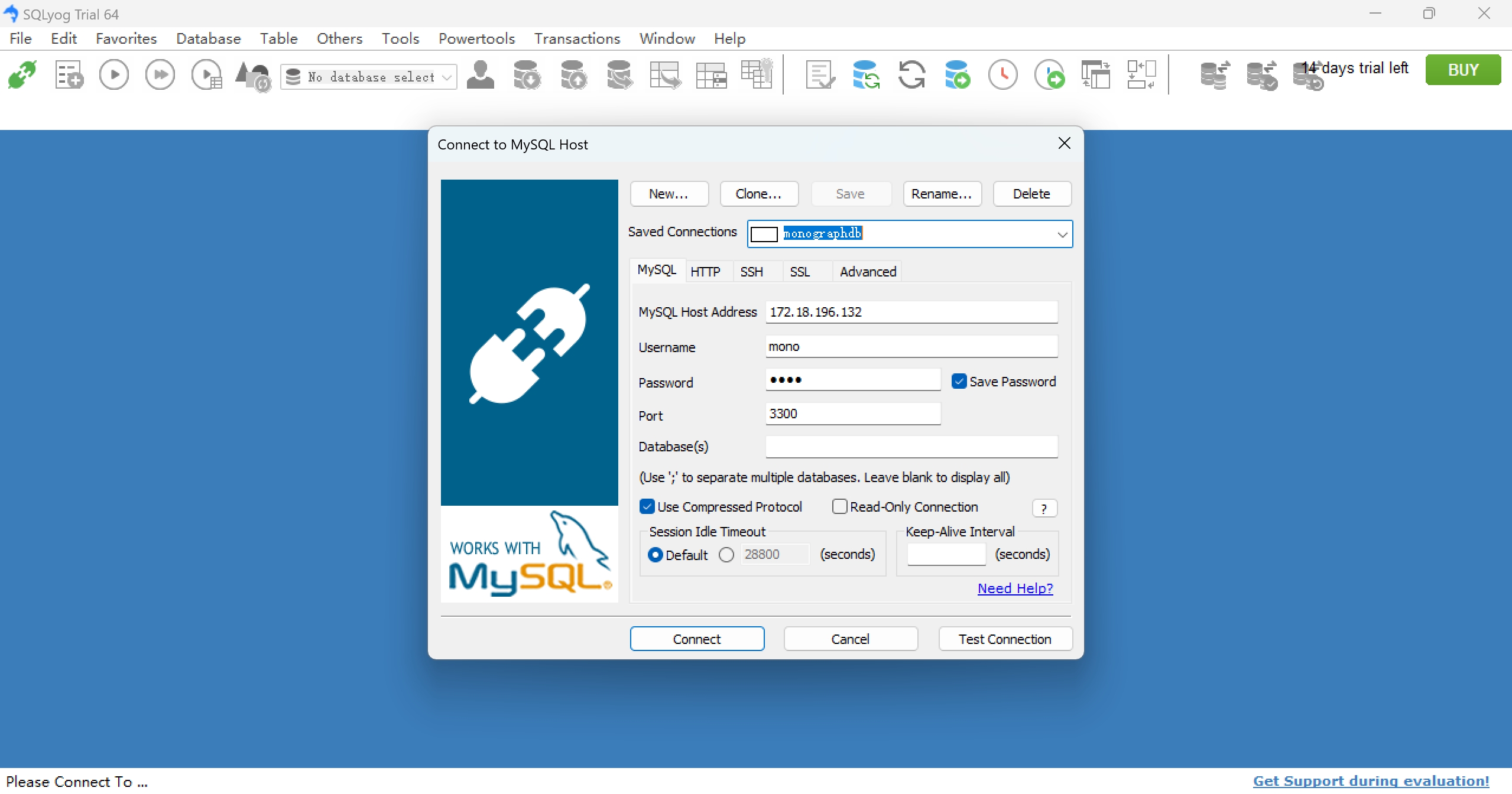 connection succeeded
 Create a new query, write a SQL statement and click Run.